Updates and the change log
How the app tells you about a new version and how to install it.
How you hear about an update
Once a day the app asks the website for the latest version number. When a newer one is out:
- Home shows Version 0.2.0 is available. with CHANGE LOG and DOWNLOAD.
- Settings › System › Version reads 0.1.0 · UPDATE 0.2.0 AVAILABLE.
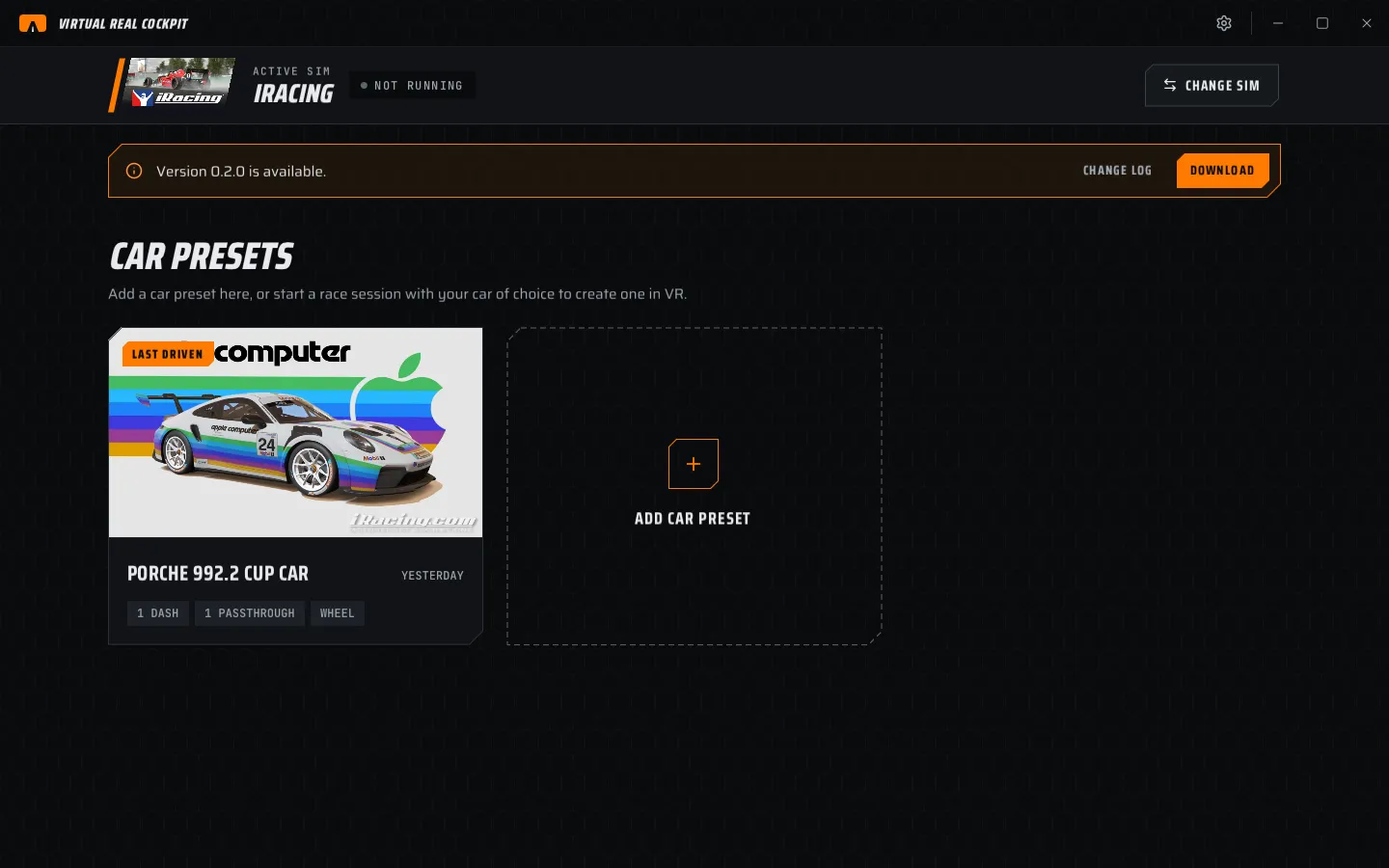
CHANGE LOG shows what is new. DOWNLOAD opens the download page in your browser.
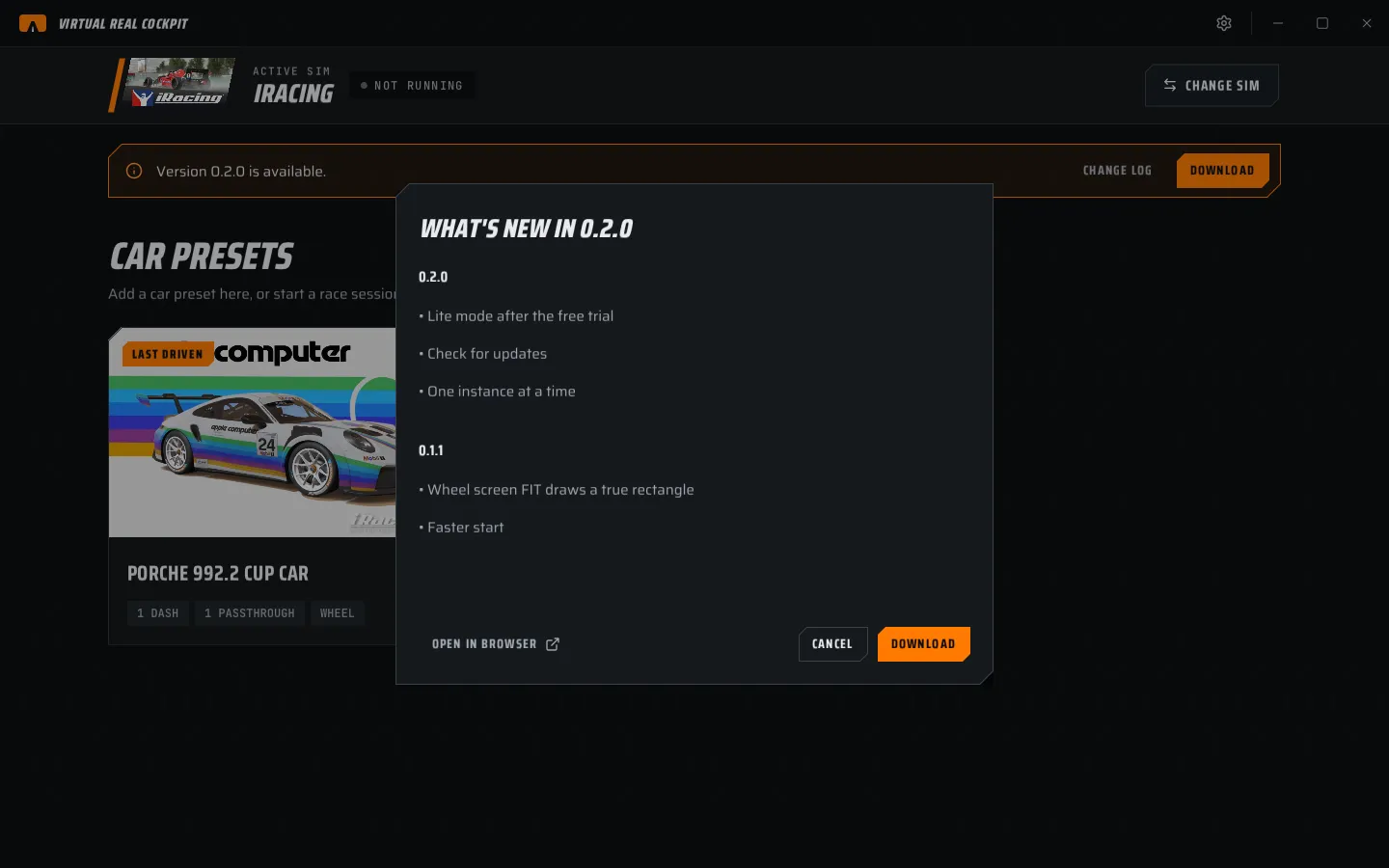
The check sends only the app's version number. The app never downloads or installs anything by itself.
To check now: Settings › System › CHECK NOW. To turn the check off: Settings › General › Check for updates once a day.
Install an update
- Close the app and the sim.
- Download the new zip.
- Unzip it over the old folder, replacing the files.
- Start the app.
Your presets, settings and license are kept. They live in %APPDATA%\CockpitXR, not in the app's folder.
Unzipped to a new folder instead? Start the app from there once, then Settings › System › REGISTER, so the sim loads the new add-on.
Which updates your key covers
Every version. A license includes lifetime updates: Settings › License › Updates shows ALL VERSIONS.
The change log
The website's Change log page lists every version, newest first, with its date.